
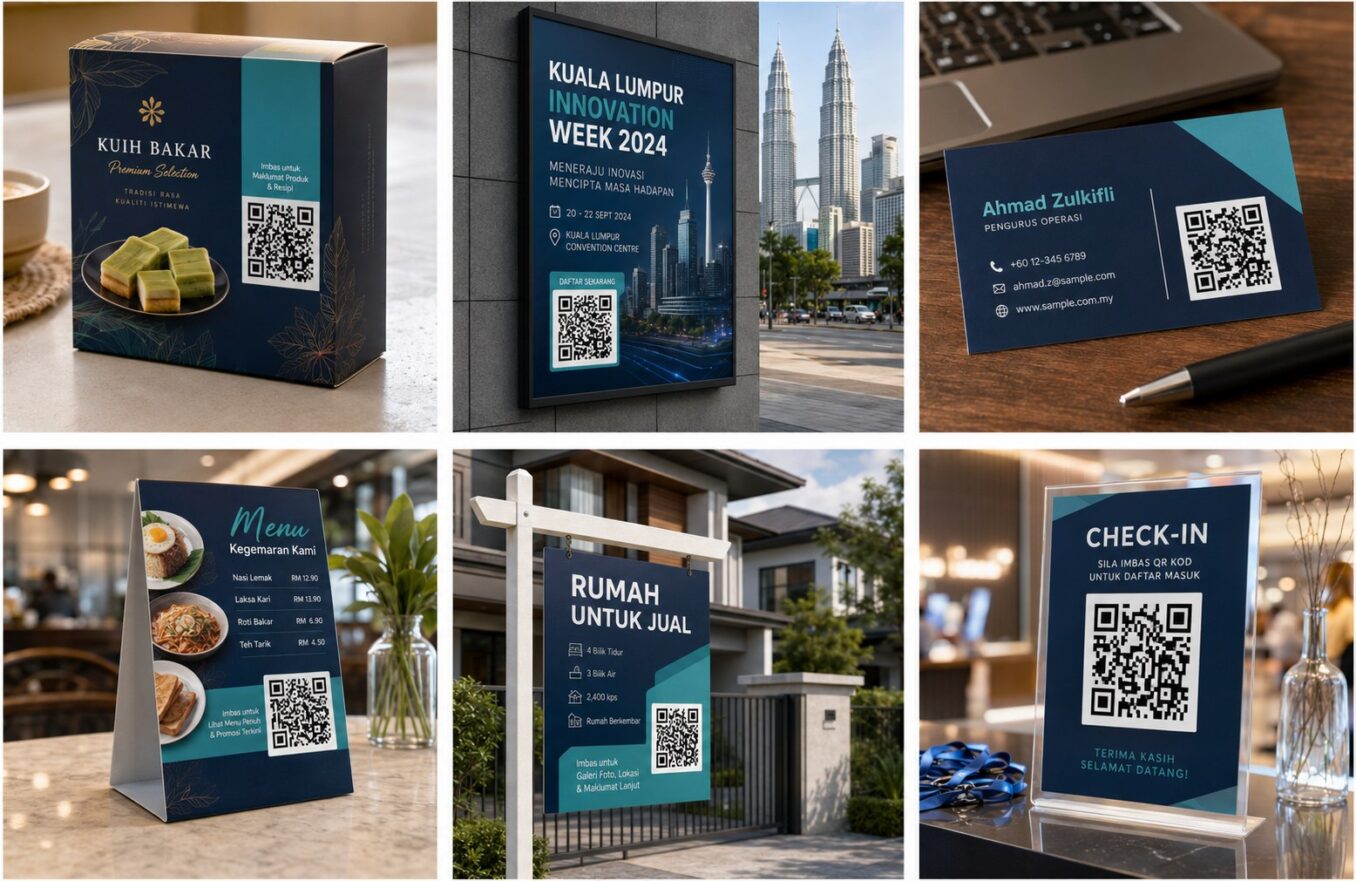
How to Print QR Codes Without Losing Scan Quality
A QR code that works perfectly on a monitor can fail after printing. The production process may shrink it, blur edges, add glare, crop margins, distort proportions, or place the symbol on a difficult material. Reliable printing requires coordination between the generator, designer, printer, and final installation team.
Use the Right Source File
For professional layout, start with SVG or a high-resolution PNG. Do not use a screenshot copied from a browser or messaging app. Keep the original square proportions and do not apply photo filters.
Prepress Checklist
- Correct destination
- Sufficient physical size
- Full quiet zone
- High contrast
- No crop marks inside the quiet zone
- No distortion
- Vector or adequate resolution
- Clear call to action
Account for Printing Method
Digital print, offset, thermal labels, screen printing, engraving, embroidery, and large-format vinyl have different limitations. Fine modules may fill in, break apart, or become uneven. Ask the printer to review a production sample.
Material Considerations
| Material | Potential issue | Response |
|---|---|---|
| Glossy card | Glare | Use matte finish or reposition |
| Fabric | Uneven modules | Increase size and simplify |
| Curved container | Distortion | Test actual curvature |
| Outdoor vinyl | Weather and distance | Use durable material and larger size |
| Thermal receipt | Fading and low resolution | Increase contrast and keep a digital alternative |
Proof at Actual Size
A zoomed PDF preview is not enough. Print at 100 percent, trim it, place it in the intended environment, and scan from normal distances and angles.
Test More Than One Copy
Production variation can affect small codes. Test several pieces from the beginning and end of a run, especially for labels, packaging, and high-volume materials.
Keep the Destination Alive
Print quality is only half the job. Record the destination, owner, and review schedule so a technically perfect code does not later lead to a deleted page.
Frequently Asked Questions
Is 300 DPI enough?
Resolution must be considered together with final physical size and module sharpness. Vector artwork is preferable for scalable professional printing.
Can I print a screenshot?
It may work at small sizes, but screenshots are risky because of low resolution and compression.
Why does lamination cause problems?
Glossy reflections can hide modules from the camera.
Should I test before the full print run?
Yes. Always approve and scan a production proof.
Can a QR code be embroidered?
Possible, but module detail is difficult. Use a larger simplified code and extensive testing.
Create Your QR Code with EasyTools
Ready to put this guide into practice? Use the EasyTools QR Code tools to create a clean, scannable code for print QR code. Check the destination carefully, test the code on more than one phone, and download the format that best matches your digital or print project.