
How to Create a WhatsApp QR Code for Customer Enquiries
A WhatsApp QR code can move a customer from a poster, storefront, invoice, or product card directly into a conversation. The best setup does more than open WhatsApp: it identifies the business, starts with a helpful message, and sends the enquiry to a number that is actively monitored.
Prepare the Correct Number
Use the full international number without spaces, brackets, or a leading local zero when required by the link format. Test the link before generating the code. A single incorrect digit creates a polished-looking code that reaches the wrong person or no account at all.
Use a Prefilled Message
A short starter message helps staff understand the source and purpose. Examples include “Hello, I would like a quotation for renovation work” or “I scanned the property flyer and would like to arrange a viewing.” Keep it editable and avoid asking for sensitive information in the first message.
Good Places to Use It
- Storefront signage
- Service vehicle
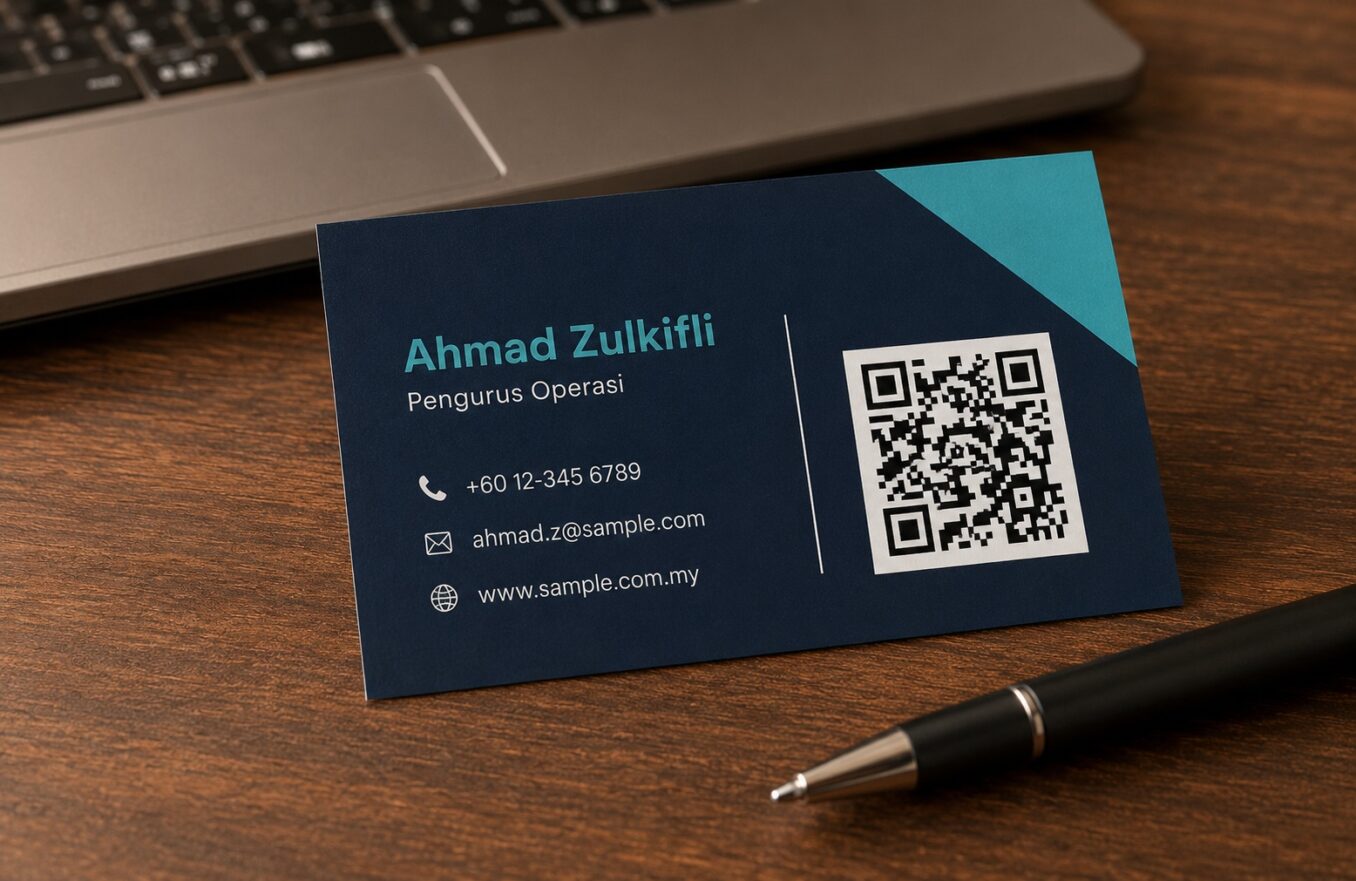
- Business card
- Quotation or invoice
- Product packaging
- Event booth
- Property brochure
Set Expectations
Place a label beside the code and state business hours or expected response time. If multiple staff share the account, decide who owns the conversation and how enquiries are assigned.
Privacy and Spam Controls
Do not publish a personal number if it should remain private. Consider a dedicated business line, WhatsApp Business tools, quick replies, labels, and a clear privacy notice when collecting customer details.
Prefilled Message Examples
| Use case | Suggested message |
|---|---|
| Quotation | Hello, I would like a quotation for [service]. |
| Booking | Hello, I would like to book an appointment. |
| Property | Hello, I am interested in the listing I scanned. |
| Support | Hello, I need help with my order. |
Test the Full Journey
Scan from the final artwork, confirm the correct account opens, check the message text, and send a real test enquiry. Make sure staff see the notification and know how to respond.
Frequently Asked Questions
Does the customer need to save my number first?
No. A properly formatted click-to-chat link can open a conversation without saving the contact first.
Can I include a message in the QR code?
Yes, the underlying link can include a prefilled message.
Should I use a personal or business account?
A dedicated business account is generally better for public marketing and team workflows.
Can one code contact multiple staff?
A single code normally opens one destination. Use a shared business workflow or separate codes for different departments.
Why does the link open the wrong number?
The international number format may be incorrect or the destination was entered wrongly.
Create Your QR Code with EasyTools
Ready to put this guide into practice? Use the EasyTools QR Code tools to create a clean, scannable code for WhatsApp QR code. Check the destination carefully, test the code on more than one phone, and download the format that best matches your digital or print project.