
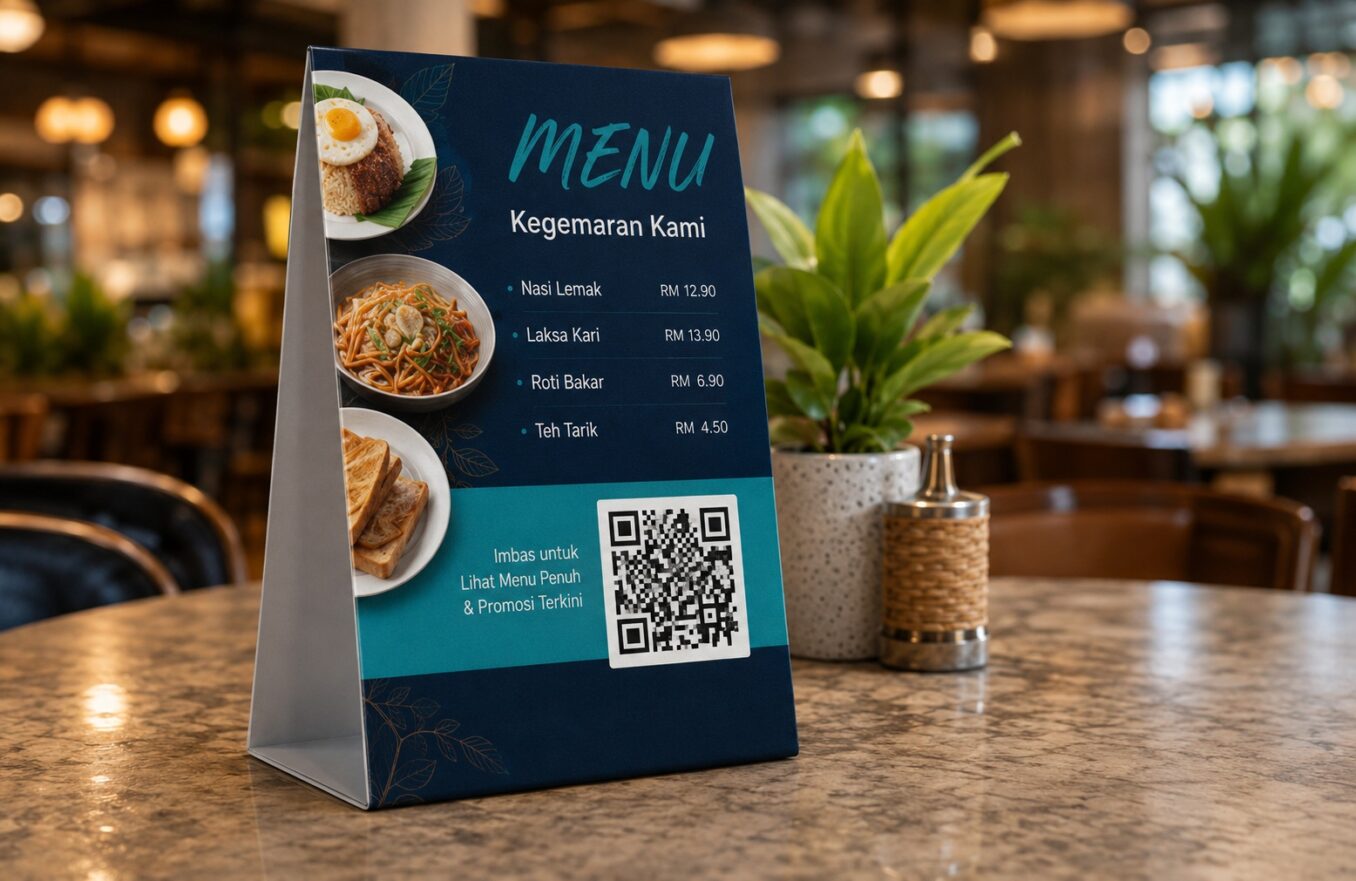
How to Create a Website QR Code That People Can Scan Easily
A website QR code turns a long web address into a quick camera action. The code is easy to generate, but small planning mistakes can lead visitors to the wrong page, a slow landing screen, or a code that fails when printed.
Step-by-Step Process
- Choose the exact landing page rather than automatically using the homepage.
- Open the destination on a phone and confirm it loads correctly.
- Copy the full HTTPS URL and remove accidental spaces.
- Generate the QR code and download a suitable file format.
- Place it into the design with a clear instruction.
- Test the final digital or printed version on multiple phones.
Choose the Right Landing Page
Match the destination to the promise beside the code. A “View Today’s Menu” code should open the menu directly, not a homepage that forces another search. A property sign should open the individual listing. A brochure code should open the specific service or offer.
Use a Trustworthy URL
A familiar domain increases confidence. Avoid confusing redirect chains and make sure the page uses HTTPS. The page title, logo, and first screen should immediately confirm that the visitor reached the expected business.
Design Rules
- Keep a generous quiet zone around all four sides of the code.
- Use strong contrast between the code and its background.
- Avoid stretching, skewing, or placing a logo over important modules.
- Test the code at the real size and viewing distance before publishing.
- Keep the destination page fast, mobile-friendly, and relevant.
Recommended Download Format
| Use | Recommended format | Reason |
|---|---|---|
| Website or email | PNG | Simple and broadly compatible |
| Professional printing | SVG | Scales without losing sharpness |
| Office document | PNG or SVG | Choose based on software support |
Add a Clear Call to Action
Place a short label near the code, such as “Scan to Book,” “Scan for Directions,” or “Scan to View Details.” The label explains the benefit and reduces uncertainty.
Measure What Happens After the Scan
Use website analytics and a campaign-tagged destination when appropriate. Measure completed actions, not only page visits. A code that receives many scans but few bookings may need a better landing page or clearer offer.
Frequently Asked Questions
Should I encode my homepage or a specific page?
Use the most relevant specific page whenever possible.
Can I use a shortened URL?
Yes, but use a trustworthy service or a branded short domain and understand the dependency.
Should the URL include HTTPS?
Yes. A secure HTTPS destination is the standard choice.
Why does my QR code scan but the website fails?
The encoded link may be correct while the destination page is unavailable, slow, blocked, or not mobile-friendly.
Can I put the code on social media?
Yes, but remember users viewing the post on the same phone may need to save the image or use built-in image scanning.
Create Your QR Code with EasyTools
Ready to put this guide into practice? Use the EasyTools QR Code tools to create a clean, scannable code for website QR code. Check the destination carefully, test the code on more than one phone, and download the format that best matches your digital or print project.